


Trick Out Your Desktop To Make It Productive
>> Saturday, November 28, 2009
The desktop is the first thing that greets us when we log into our computers. And it's also probably the most underutilized aspect of our working environment. Most of us (you too, homie!) just dump all our icons and shortcuts onto the desktop and forget about cleaning them up later. Although that approach gets the work done for most of us, it isn't half as productive as it can be. Luckily, you have me to show you exactly what to do to trick out your desktop with some awesome (yet light-weight) applications.
Important: Although these can be installed on any post-XP windows system, you get the most out of them when you are using Windows 7 (No. I am not a Microsoft fan-boy!).
So here's what you are going to need:
Important: Although these can be installed on any post-XP windows system, you get the most out of them when you are using Windows 7 (No. I am not a Microsoft fan-boy!).
So here's what you are going to need:
- Rainmeter
- Stick
- Close All Windows
- Jumplist Launcher
- 7Stacks
- Fences
- Blaze: Automated Desktop Experience
Now that you have all your gear in place, let's get this party started. Below, I am going to explain the basic functioning of each of these apps and how you can use them to make your desktop work the way you want it to.
Rainmeter: If there's one app that made the Windows desktop totally usable, it's Rainmeter. Rainmeter essentially uses some scripting kung-fu saved in .ini files (that's normal text files saved with the extension .ini). The developers like to call them "Skins", although I prefer to settle for "Widgets". The default installation (make sure that you downloaded v1.0) comes with an ass-kicking number of widgets and you can download more from Customize.org Rainmeter also comes with a default theme, Enigma by Kaelri, which should be able to handle all your needs. Look at the screenshot below to see how it looks. The theme comes with multiple clocks, a basic calendar, a tasks list, a GMail widget, Weather widget, a Twitter widget, RSS Reader, System Monitors, Application Launchers, etc. You can add/remove widgets at will.
Rainmeter: If there's one app that made the Windows desktop totally usable, it's Rainmeter. Rainmeter essentially uses some scripting kung-fu saved in .ini files (that's normal text files saved with the extension .ini). The developers like to call them "Skins", although I prefer to settle for "Widgets". The default installation (make sure that you downloaded v1.0) comes with an ass-kicking number of widgets and you can download more from Customize.org Rainmeter also comes with a default theme, Enigma by Kaelri, which should be able to handle all your needs. Look at the screenshot below to see how it looks. The theme comes with multiple clocks, a basic calendar, a tasks list, a GMail widget, Weather widget, a Twitter widget, RSS Reader, System Monitors, Application Launchers, etc. You can add/remove widgets at will.
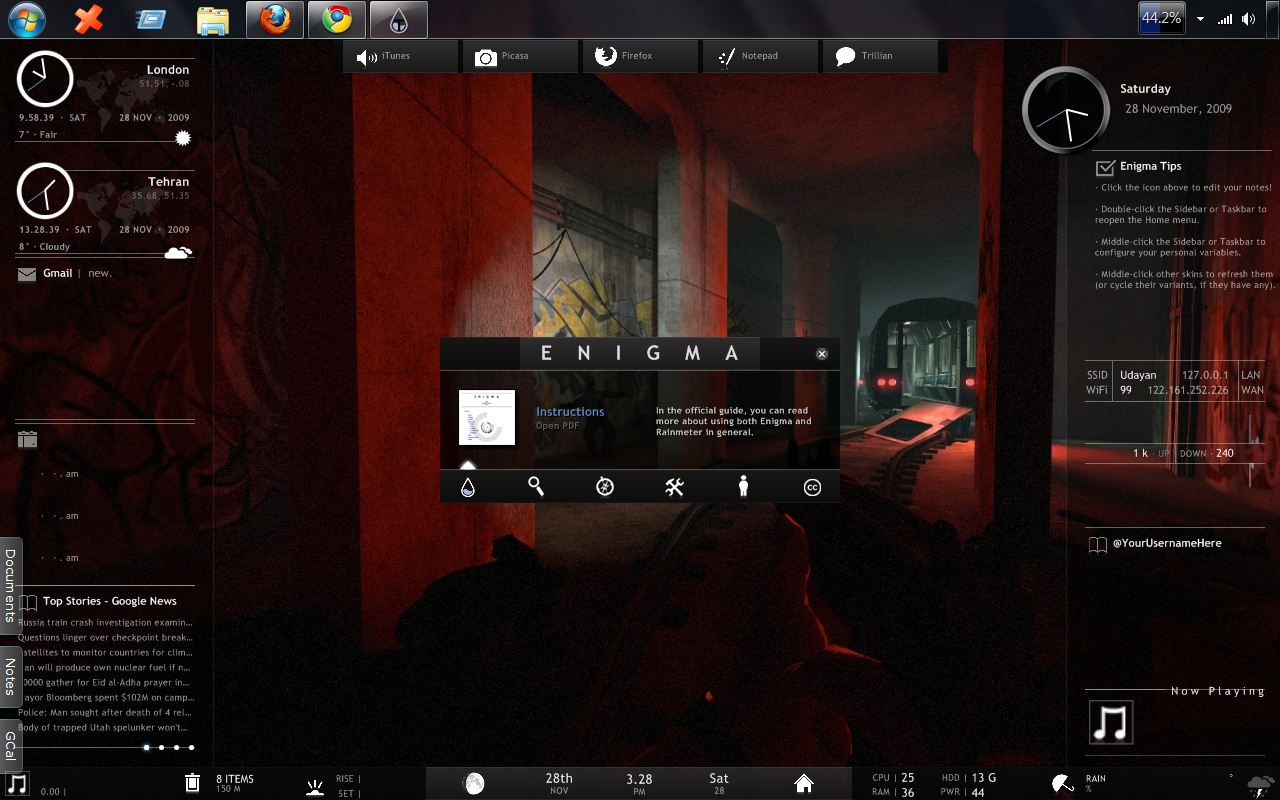
To use a widget you need to place its configuration files (.ini) into "%USERPROFILE%\Documents\Rainmeter\Skins. Then, to add widget, just right-click on the Rainmeter icon on the taskbar and select the appropriate skin from the Configs sub-menu. To remove a widget, just hover over the individual skin sub-menus and select Close Skin. The uber-geeks who are comfortable with playing around with code may modify the .ini files to make the widgets suit their needs. The code is actually quite easy to work with.
 Stick: I don't know about you, but I'm a huge fan of any software that's tab. So the other day, I started thinking why I can't add tabs to my desktop. In my quest for a satisfactory answer, I discovered Stick. Stick enables you to place convenient tabs to the top, bottom, left and right desktop edges. These tabs may be used as a Notebook, a permalink to your most-visited sites, or even a hard-link to your favorite folders. I use Stick to display Notes, Google Calendar and my Documents Folder. You can also assign custom keyboard shortcuts to open/collapse a tab (I use Winkey + C for my Calendar). Its very easy to configure and you should definitely take it out for a spin. My only gripe with it is that it uses the IE8 engine to render web pages.
 Close All Windows: This is one of those little buggers that are best used on Windows 7. Just extract this app into a folder and Pin it to the Taskbar. Next time you are in a hurry, just click the button once to see all your open apps vanish. Do make sure that all your data is saved though.
Jumplist Launcher: Another Windows 7 app, which uses the awesome Jumplists in Windows 7 (look at my post Nifty Windows 7 Features for a review). Just run this application and add upto 60 of your favorite files, folders, and applications in the window that pops up. Then pin Jumplist Launcher to the Taskbar and get access to those items within two clicks.
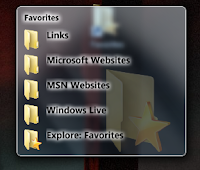 7Stacks: Mac users use something called a Stack to show them the contents of their favorite directories. Just clicking on a link on the desktop shows an aesthetically-pleasing representation of a particular directory. Windows users can get the same goodness by using 7Stacks. Just install the application and create your stacks from within the window that pops up (TIP: place the stacks as a shortcut on your desktop to really make them work for you). Find a version for Windows Vista/XP here.
Fences: This one is for the icon-junkies. Install fences to create different containers of icons on your desktop. No more hunting for icons as you will have the relevant ones grouped together. Fences manages these icons once it's running. You can drag the containers around, resize them or delete them altogether. And just so your desktop doesn't look like an ugly mess of icons (thus hiding the lovely wallpaper, or your amazing Rainmeter widgets), you can double-click on the desktop to hide all icons. Do it again to make them visible.
Blaze: Automated Desktop Experience: This little big-guy is probably the best application launcher that there is presently. Just hit Ctrl+Alt+Space and a cute little box pops up where you can type the name of your program to make it run. It also performs a host of other functions, which can be found here. The best part is that you don't even have to remember the name of your app to run it. If you type in "Moziwa Faiafox" instead of "Mozilla Firefox", Blaze will still launch your favorite browser. Blaze also automates tasks such as renaming files, etc and can open your files and folders.

All, or some of these apps used together should definitely make your desktop experience a very productive two-click affair. You will most likely forget about having to dive deep into the file-system to get to what you need. I have also been looking for ways make the Windows 7 taskbar as small as possible (for Netbooks), but haven't been able to find anything rewarding yet. Will post something when I do.
What's your favorite way of getting your desktop to work for you? Tell me about it in the comments. If you liked this article, don't forget to digg it and tweet about it to your friends. Use the share widget below to do the same.
 7Stacks: Mac users use something called a Stack to show them the contents of their favorite directories. Just clicking on a link on the desktop shows an aesthetically-pleasing representation of a particular directory. Windows users can get the same goodness by using 7Stacks. Just install the application and create your stacks from within the window that pops up (TIP: place the stacks as a shortcut on your desktop to really make them work for you). Find a version for Windows Vista/XP here.
Fences: This one is for the icon-junkies. Install fences to create different containers of icons on your desktop. No more hunting for icons as you will have the relevant ones grouped together. Fences manages these icons once it's running. You can drag the containers around, resize them or delete them altogether. And just so your desktop doesn't look like an ugly mess of icons (thus hiding the lovely wallpaper, or your amazing Rainmeter widgets), you can double-click on the desktop to hide all icons. Do it again to make them visible.
Blaze: Automated Desktop Experience: This little big-guy is probably the best application launcher that there is presently. Just hit Ctrl+Alt+Space and a cute little box pops up where you can type the name of your program to make it run. It also performs a host of other functions, which can be found here. The best part is that you don't even have to remember the name of your app to run it. If you type in "Moziwa Faiafox" instead of "Mozilla Firefox", Blaze will still launch your favorite browser. Blaze also automates tasks such as renaming files, etc and can open your files and folders.

All, or some of these apps used together should definitely make your desktop experience a very productive two-click affair. You will most likely forget about having to dive deep into the file-system to get to what you need. I have also been looking for ways make the Windows 7 taskbar as small as possible (for Netbooks), but haven't been able to find anything rewarding yet. Will post something when I do.
What's your favorite way of getting your desktop to work for you? Tell me about it in the comments. If you liked this article, don't forget to digg it and tweet about it to your friends. Use the share widget below to do the same.


.gif) Jumplists: Remember the plain-Jane right-click on taskbar buttons? Well, with Jumplists, all that is a thing of lore. Jumplists are handy little lists which pop-up when you right-click on application buttons on the taskbar. Depending on application support, these lists may show the most recent files opened with a particular application or even go on to show some of the most common tasks you can perform with the application.
Jumplists: Remember the plain-Jane right-click on taskbar buttons? Well, with Jumplists, all that is a thing of lore. Jumplists are handy little lists which pop-up when you right-click on application buttons on the taskbar. Depending on application support, these lists may show the most recent files opened with a particular application or even go on to show some of the most common tasks you can perform with the application.
